

Guide
How to make an EdgeTX color-screen theme
A theme for an EdgeTX color-screen radio is just a folder of PNGs and one small text file. No coding, no firmware flashing.
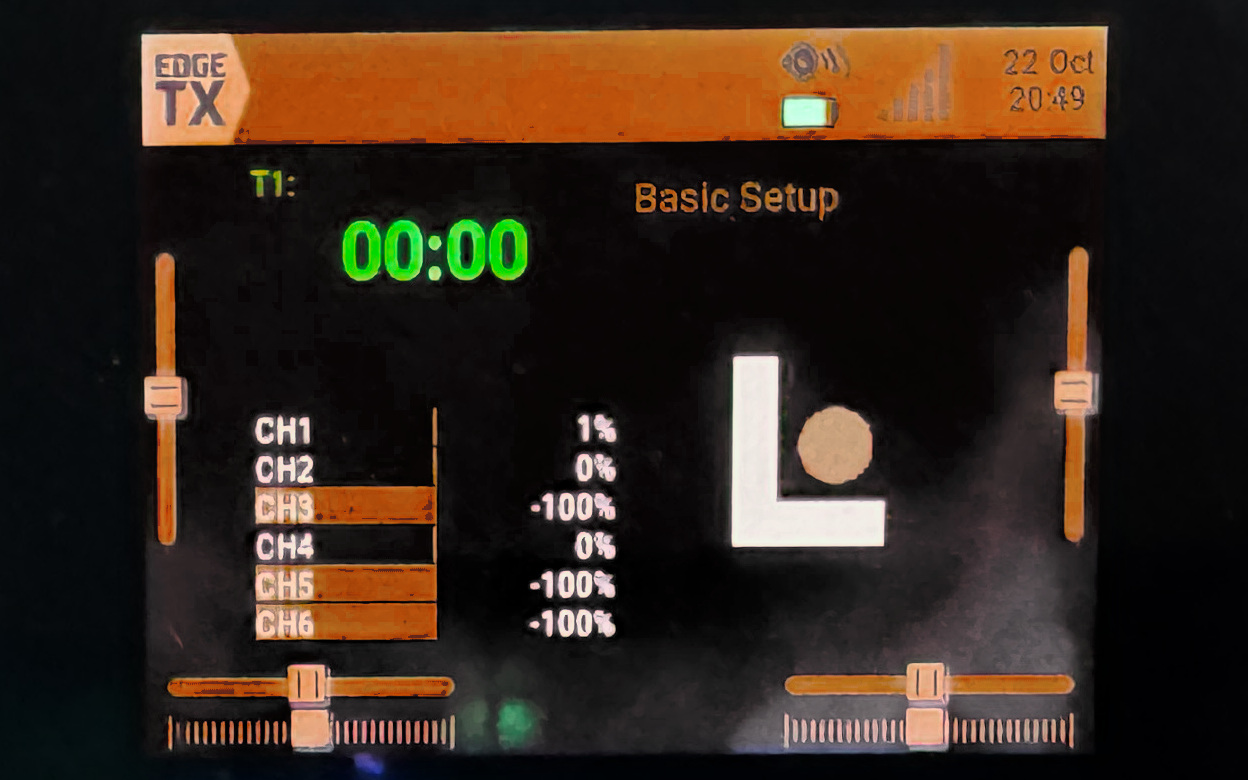
I made a copper-and-black one called Lost Penny. Below are the real files, then the mistakes I made so you can skip them.
Download and install the theme
Just want the theme? Grab it here:
- Unzip it. You get one folder called
lost_penny. - Copy that folder into the
THEMESfolder on your radio's SD card, so you end up withTHEMES/lost_penny/theme.yml. - Select it on the radio (see Select it on the radio below).
I started from the IG_Coffee theme by InGage FPV in the EdgeTX themes repo. I kept the file layout and swapped in my own colors and artwork. Thanks to InGage FPV for the head start.
1. The folder layout
Every theme lives in its own folder under /THEMES/ on the SD card. Here's mine exactly as it ships:
THEMES/
└── lost_penny/
    ├── theme.yml
    ├── logo.png                 225x128
    ├── screenshot1.png          480x272
    ├── screenshot2.png          480x272
    ├── screenshot3.png          480x272
    ├── background_320x240.png
    ├── background_320x480.png
    ├── background_480x272.png
    ├── background_480x320.png
└── background_800x480.pngtheme.yml, logo.png and the three screenshots are required. The backgrounds are optional, but your theme will look unfinished without them. Keep the folder name short, lowercase, no spaces, and no hidden files (Macs love to sneak ._ files onto SD cards).
2. theme.yml: the colors
Here's my whole theme.yml:
---
summary:
  name: Lost Penny
  author: LostPennyFPV
  info: Copper and black - wtfpv.com
colors:
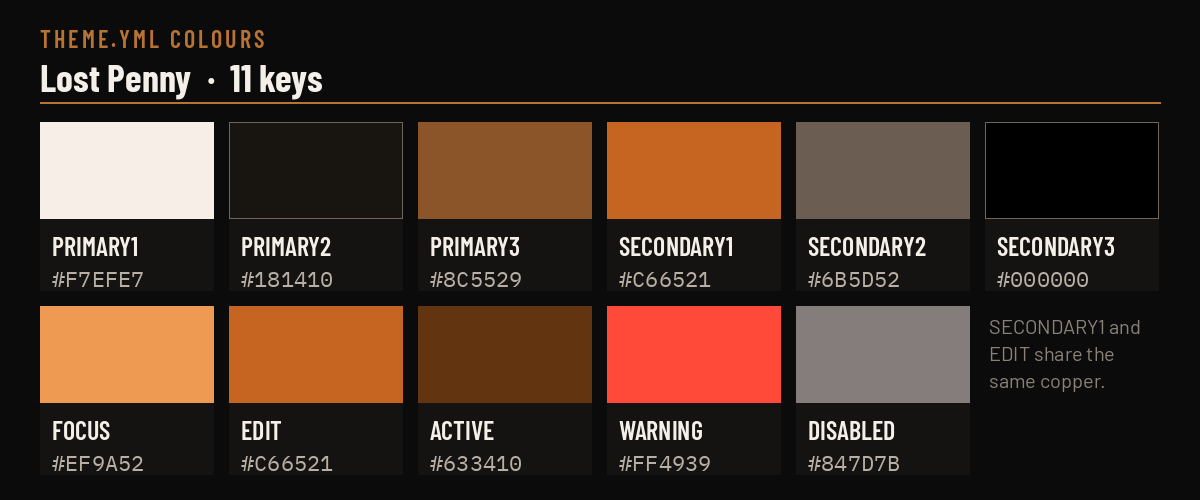
  PRIMARY1:   0xf7efe7
  PRIMARY2:   0x181410
  PRIMARY3:   0x8c5529
  SECONDARY1: 0xc66521
  SECONDARY2: 0x6b5d52
  SECONDARY3: 0x000000
  FOCUS:      0xef9a52
  EDIT:       0xc66521
  ACTIVE:     0x633410
  WARNING:    0xff4939
  DISABLED:   0x847d7b
The first line must be ---. name, author and info show up in the radio's theme list. Colors are 0xRRGGBB hex.
What each color does (from the EdgeTX theme docs):
- PRIMARY1: normal label and button text. Mine is warm off-white.
- PRIMARY2: text and icons on the top bar, field backgrounds, text while editing, trim and slider knobs. Mine is near-black, so it reads on the copper bar.
- PRIMARY3: scroll markers and the inactive parts of top-bar icons.
- SECONDARY1: the top bar and bottom bar background, plus trim and slider tracks. This is the big copper color.
- SECONDARY2: label and button backgrounds (borders, in practice).
- SECONDARY3: the main screen and pop-up background. Pure black for me.
- FOCUS: whatever is highlighted or selected. A lighter copper so you can find your place.
- EDIT: a field's background while you're changing it. I use the same copper as SECONDARY1.
- ACTIVE: active buttons and toggles. Dark brown.
- WARNING: warning text. Red-orange, because warnings should look like warnings.
- DISABLED: greyed-out items.
EdgeTX 2.12 added two optional keys, QM_BG and QM_FG, for the Quick Menu background and foreground. Mine doesn't set them yet. Add them if you want full control on 2.12.
3. Backgrounds: one per screen size
The radio looks for background_<width>x<height>.png that matches its own screen. If that file is missing, it tries background.png in your theme folder, then falls back to the stock EdgeTX background. So I'd ship all five:
| File | Example radios (per EdgeTX docs) |
|---|---|
background_320x240.png |
PA01 |
background_320x480.png |
EL18, NV14 (portrait) |
background_480x272.png |
TX16S, T16, X10, X12S |
background_480x320.png |
PL18, PL18EV, T15 |
background_800x480.png |
TX16S MK3 |
My backgrounds are dark copper smoke with a touch of verdigris green around the edges, saved as plain RGB PNGs (no transparency).
4. logo.png (225x128)
This is the tile you see in the theme picker. Make it 225x128 to match the EdgeTX example theme. Mine is my stacked logo on black.

5. Screenshots
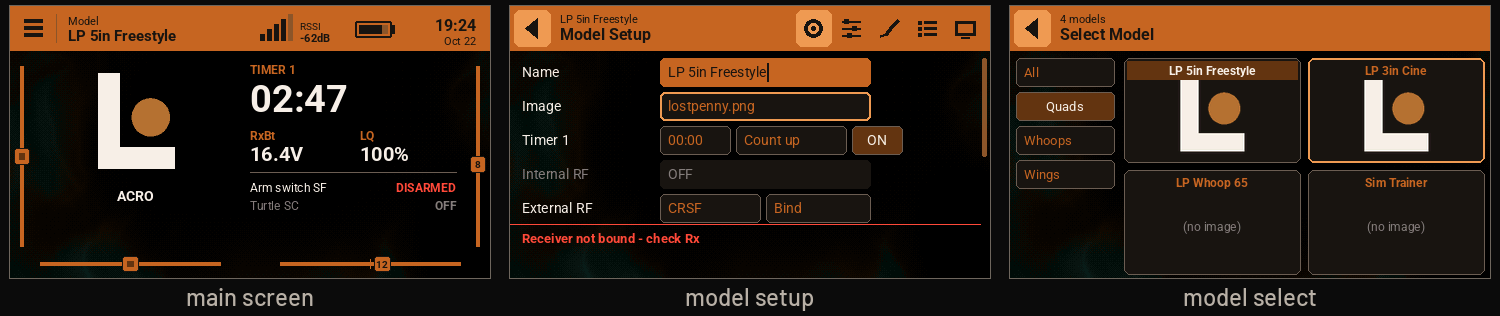
The three screenshots are previews of your theme, used in the theme picker and in theme galleries. The EdgeTX themes repo asks for the main screen, model select with at least two models, and a screen showing the warning color. Mine are:
screenshot1.png: the main screen with some widgets.screenshot2.png: model setup, showing the red warning color.screenshot3.png: model select.
Mine are 480x272. The easiest way to make them is the simulator in EdgeTX Companion, which has a screenshot button.
6. Install it and select it on the radio
- Power off the radio and put the SD card in your computer (or connect by USB in storage mode).
- Copy your theme folder into
/THEMES/. - Eject safely and power the radio back on.
Select it on the radio
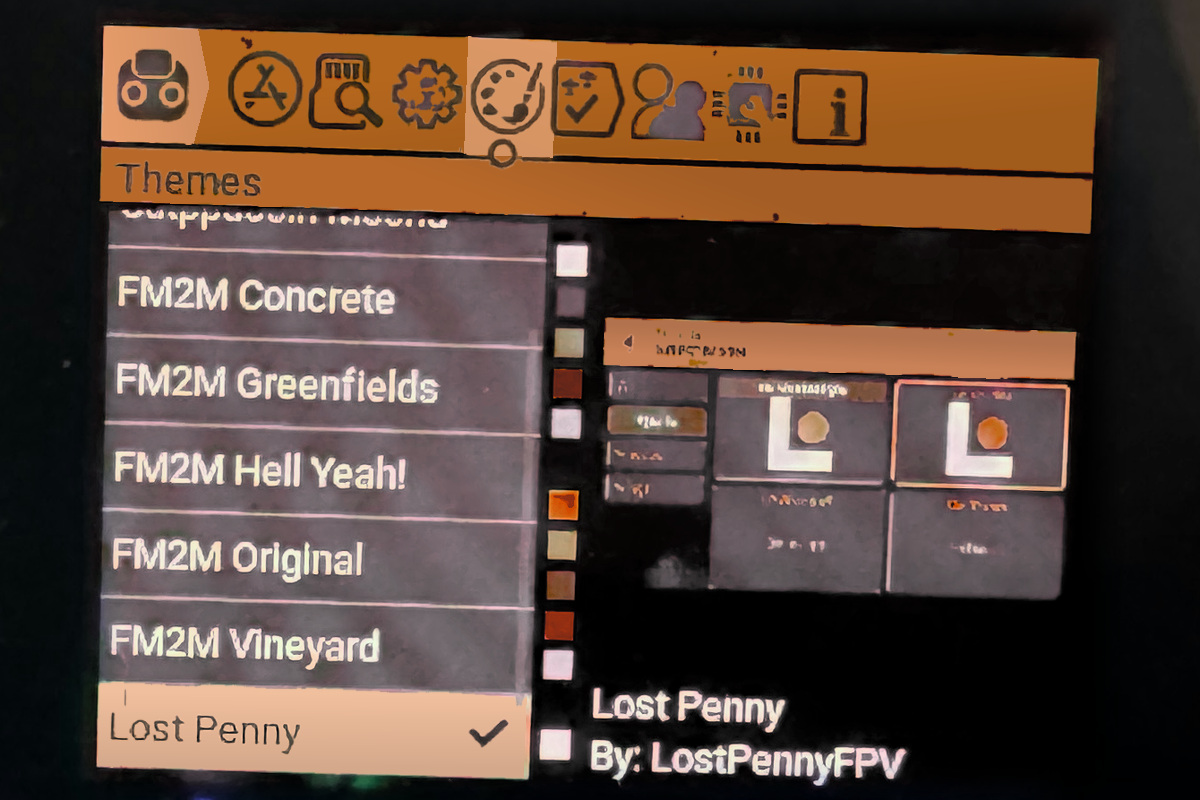
- Open the Radio Settings section (the SYS button on most radios).
- Go to the Themes page.
- Find your theme in the list, long-press it, and choose Set Active.
The same menu has Edit, so you can tweak colors on the radio itself.
7. Lessons I learned the hard way
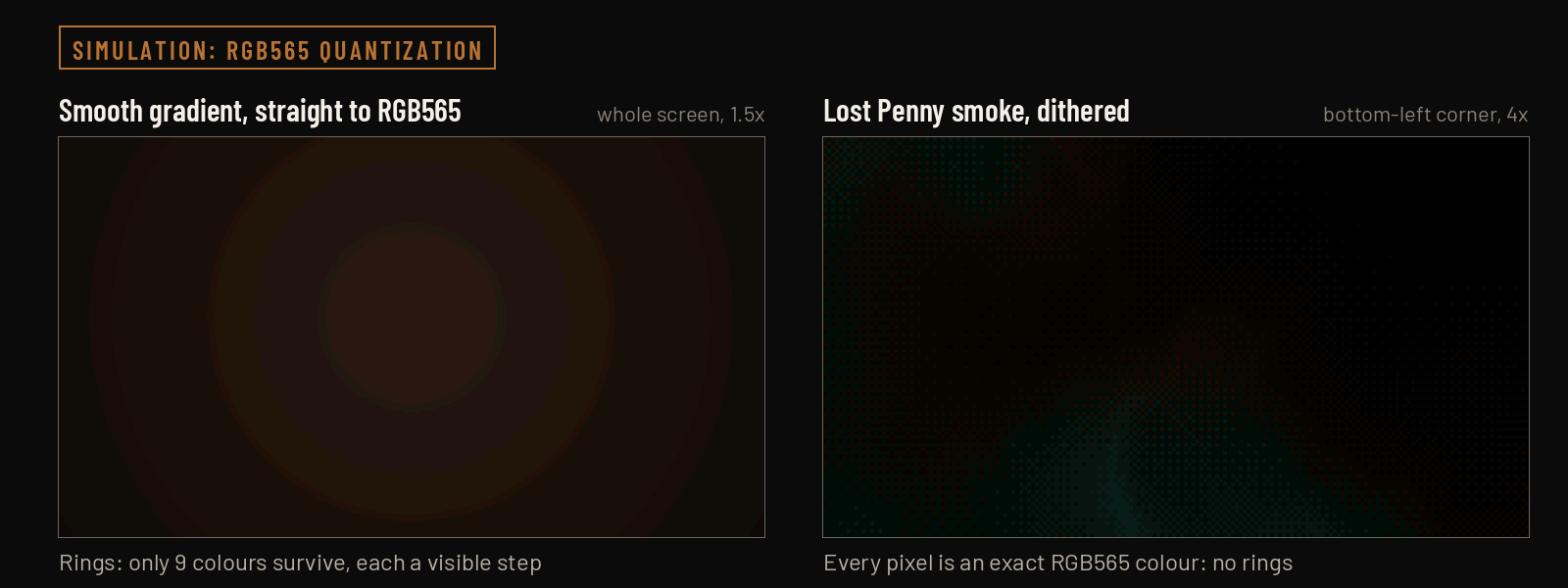
The screen is 16-bit (RGB565), so smooth gradients band. You only get 32 levels of red and blue and 64 of green. A soft dark gradient turns into visible stripes. Use flat fills, or a dithered texture like my smoke background, which uses a small set of colors that the screen can show exactly.
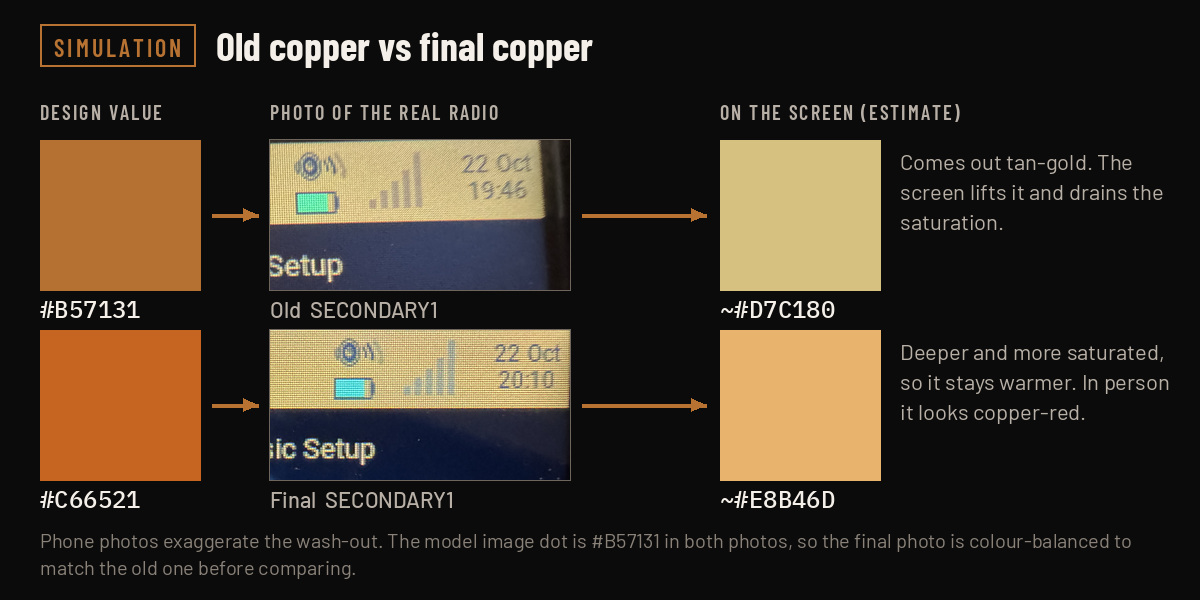
Light, low-saturation colors wash out. Tan and beige end up looking almost white on the radio.
My copper looked wrong. Brand copper #B57131 showed up tan-gold on the real screen. The deeper, more saturated #C66521 actually looks like copper, so that's what's in the theme.
Test on the real radio and take a photo. The PC preview and the Companion simulator lie about color. Load the theme, look at it outside and indoors, and take a photo so you can compare versions.
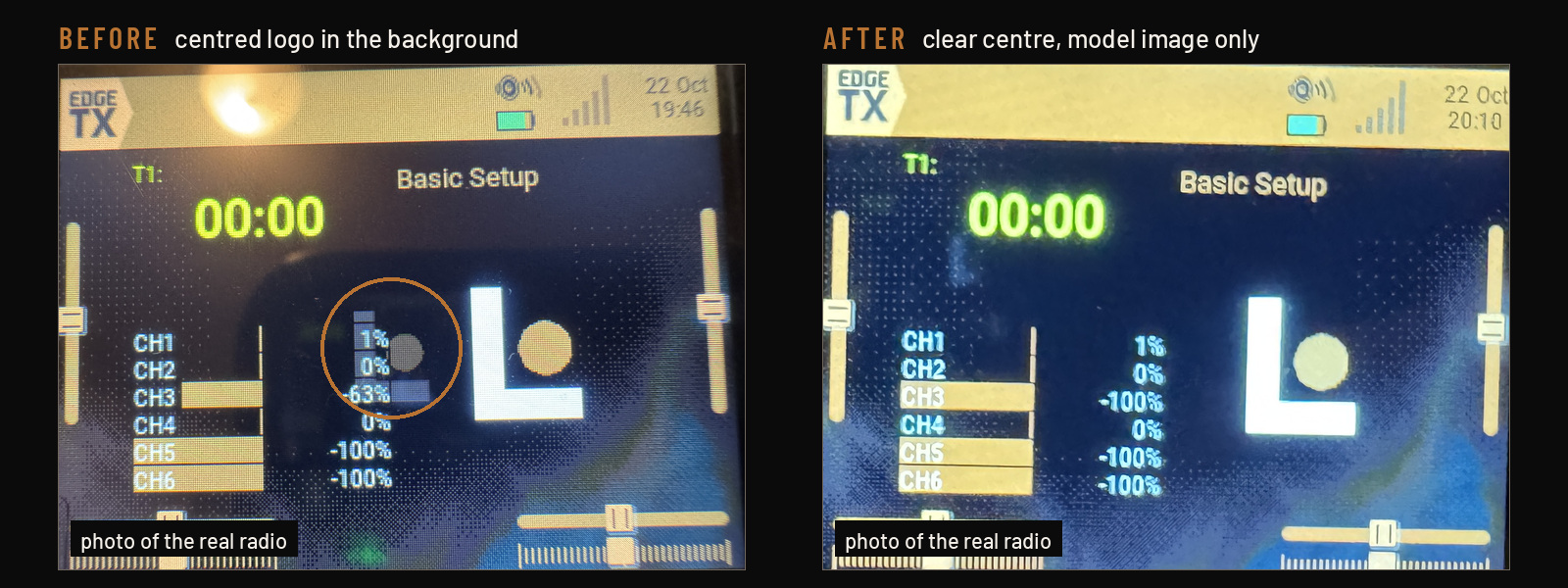
Keep the middle of the background clear. I had a logo in the center of the background. It fought with the widgets and the model image, so I took it out. Busy stuff goes at the edges.
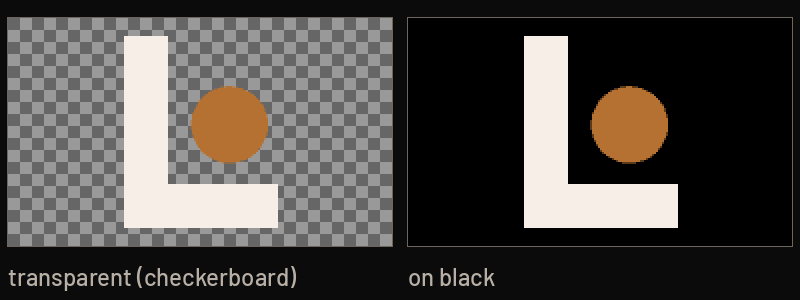
Model images are 192x114 PNGs with transparency. That's the size EdgeTX suggests for the Model Info widget. With a transparent background they sit cleanly on the theme. Put them in /IMAGES/ and keep the file name short. EdgeTX says 9 characters max, so mine is lostpenny.png.
That's it
Anyhow, that's the whole thing: a folder, a YAML file, some PNGs, and a few trips between your computer and the radio. Make something that looks like you, then go fly.
Sources
- EdgeTX themes repo: structure.md (folder layout, theme.yml, color keys, background files)
- EdgeTX themes repo: CONTRIBUTING.md (screenshots, Companion simulator)
- EdgeTX themes repo: example theme (logo.png is 225x128)
- EdgeTX themes repo: IG_Coffee by InGage FPV
- EdgeTX User Manual: Themes
- EdgeTX User Manual: Radio Settings
- EdgeTX User Manual: Storage (THEMES and IMAGES folders, model image sizes)
- EdgeTX firmware: theme_manager.cpp (background file lookup)
- EdgeTX firmware: lv_conf.h (16-bit color depth)